Fixed Assets
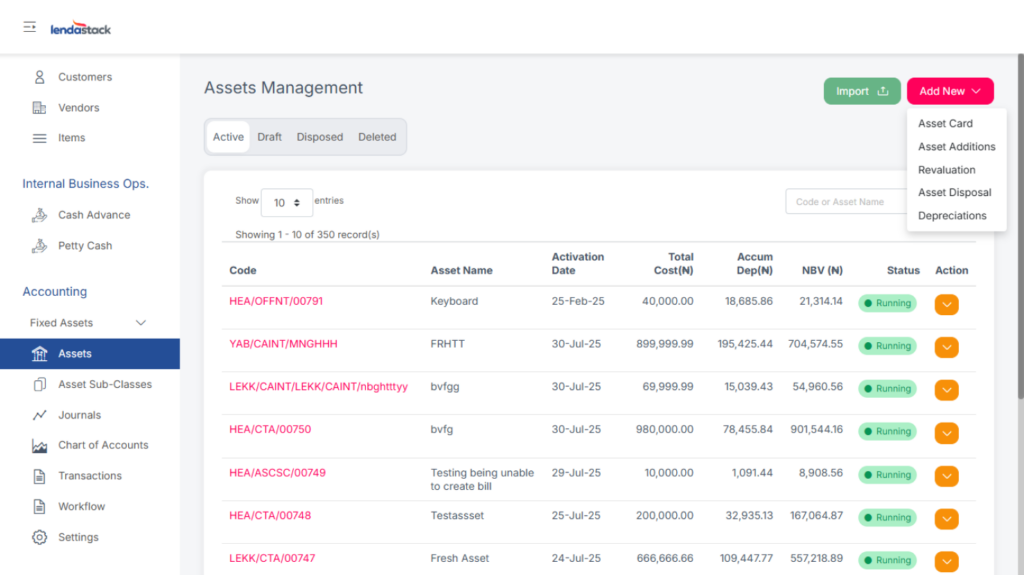
This section allows users to create asset cards, add new assets, record revaluations, disposals, and depreciation.
To perform any of these actions:
- Click the Add New dropdown.
- Select the desired option from the list.
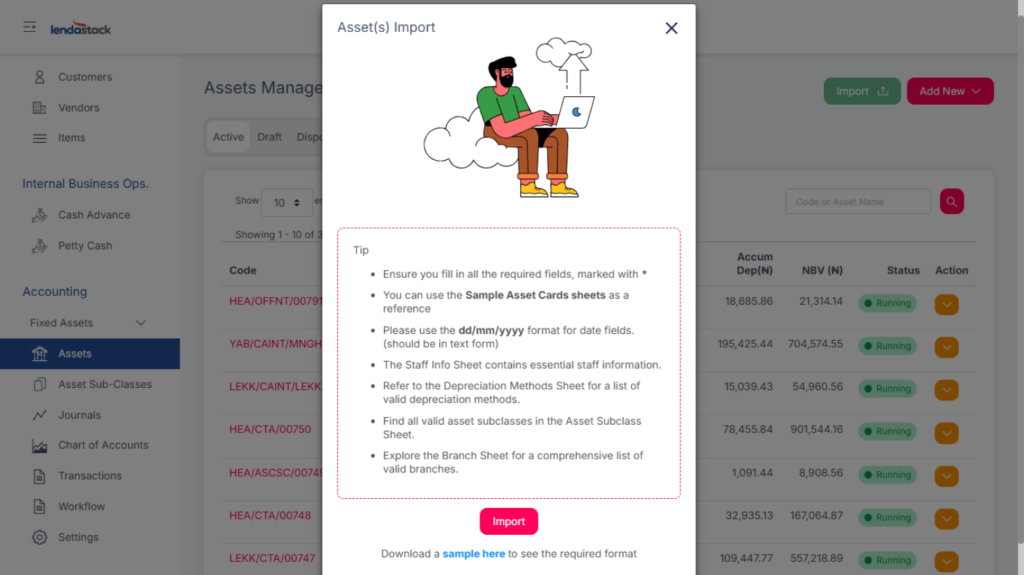
Users can bulk upload asset registers by clicking Import, downloading the sample template, filling it, and uploading it back.
Asset Sub-Classes
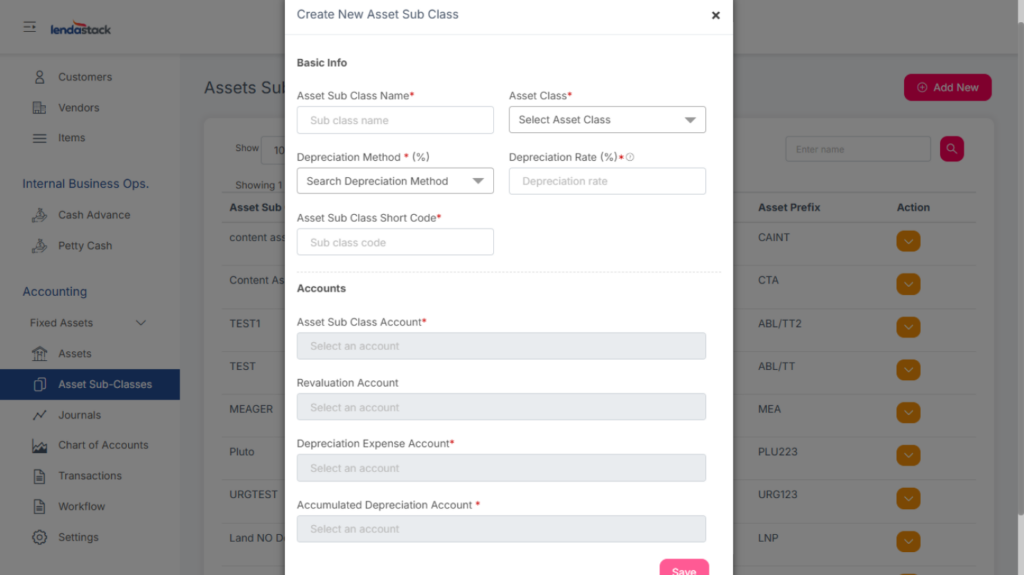
To create a new asset sub-class:
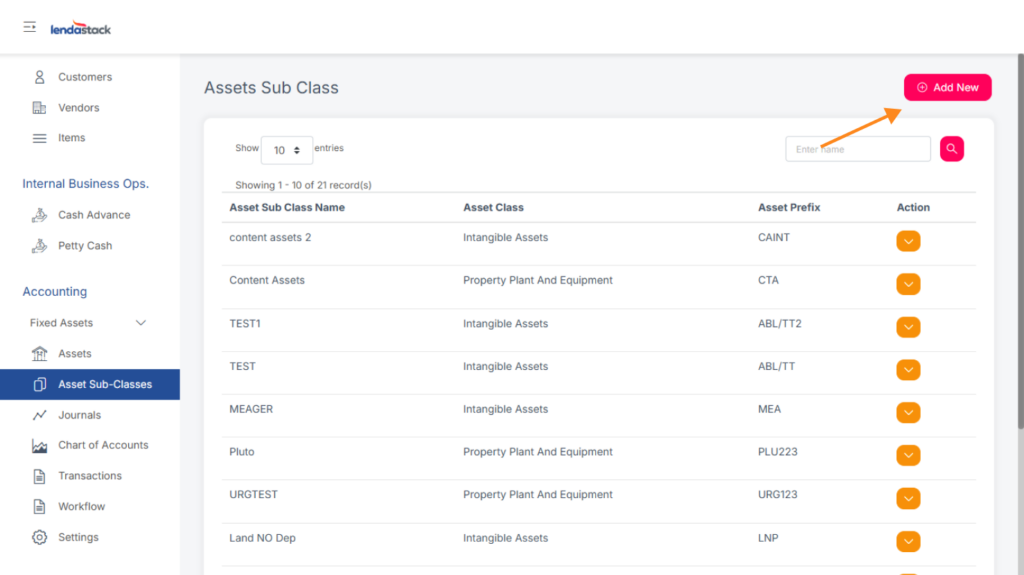
- Click Add New.
- Complete all required fields.
To edit or delete an existing sub-class:
- Locate the sub-class, then use the drop-down menu to select Edit or Delete.
Journals
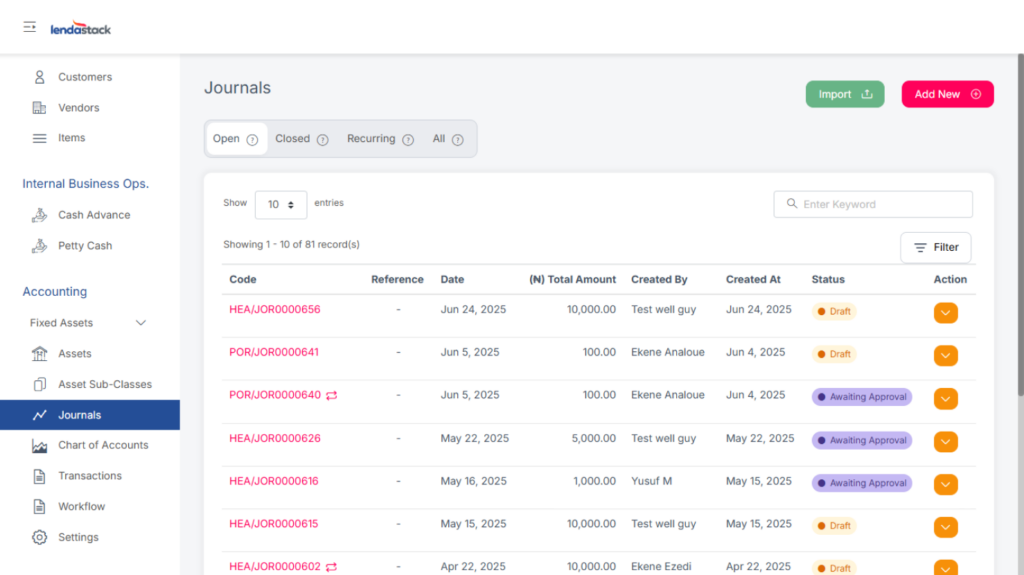
Use this section to create journal entries.
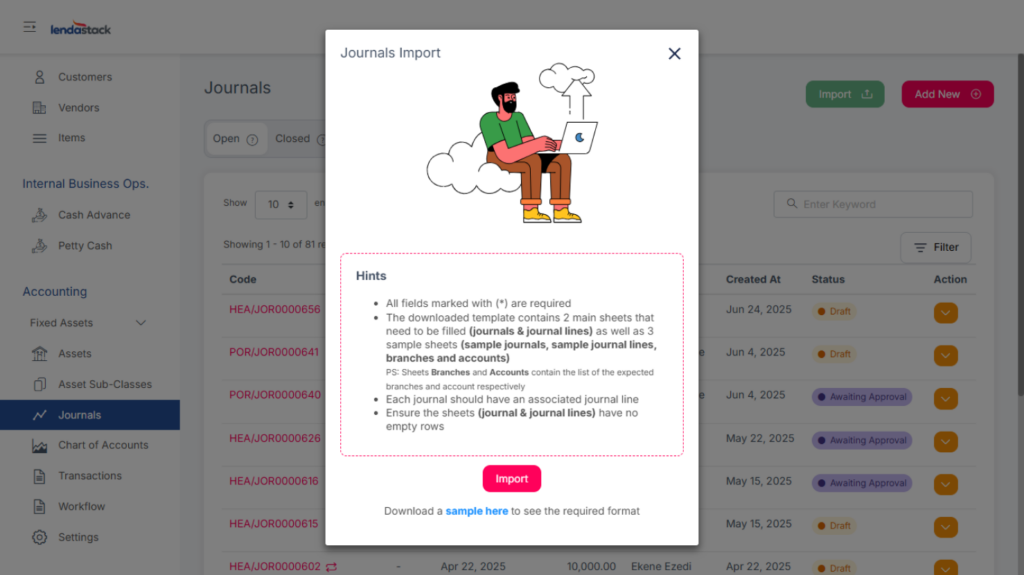
Bulk Upload Option:
- Click Import to download a sample template
- Fill in all necessary details in the file.
- Upload the completed file to process multiple entries at once.
Adding Journal Entries
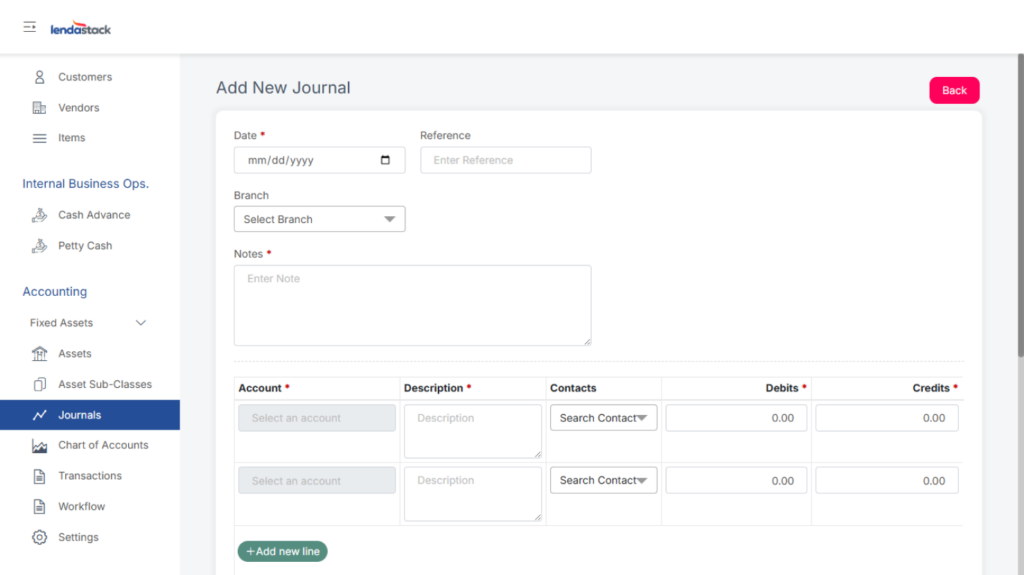
Single Entry:
- Click Add New and fill in the displayed form.
Bulk Upload:
- Click Import to download a sample format.
- Complete the template with the required journal details.
- Upload the file to process multiple entries at once.
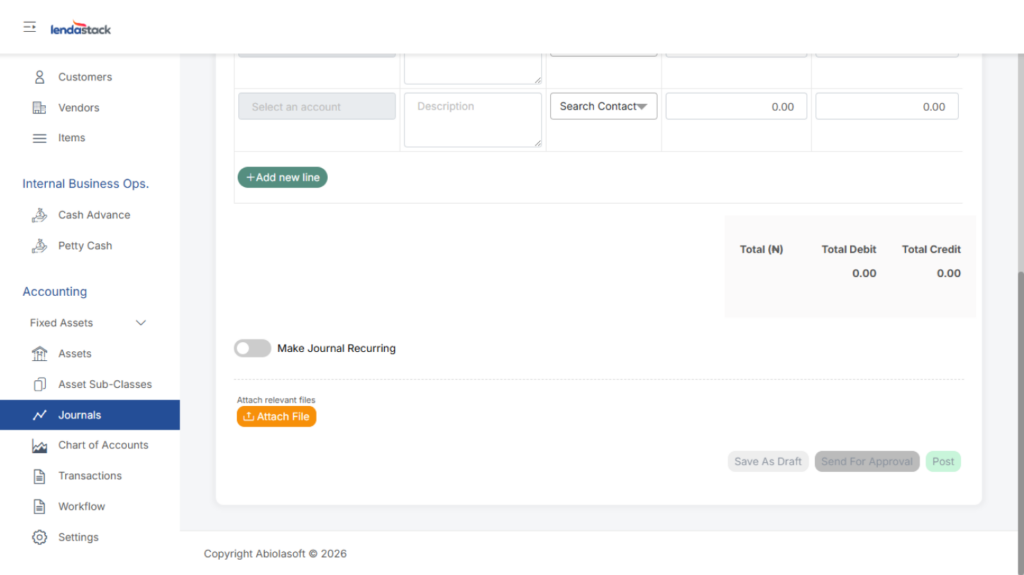
Journals are categorized as Open (drafts or awaiting approval), Closed (posted, voided, or rejected), and Recurring (scheduled to repeat automatically).
Chart of Accounts
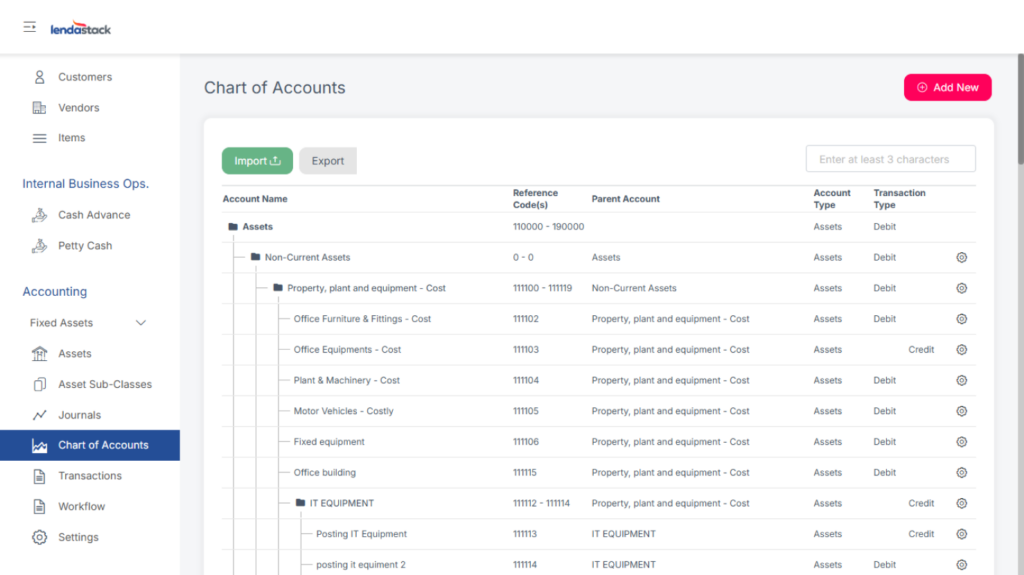
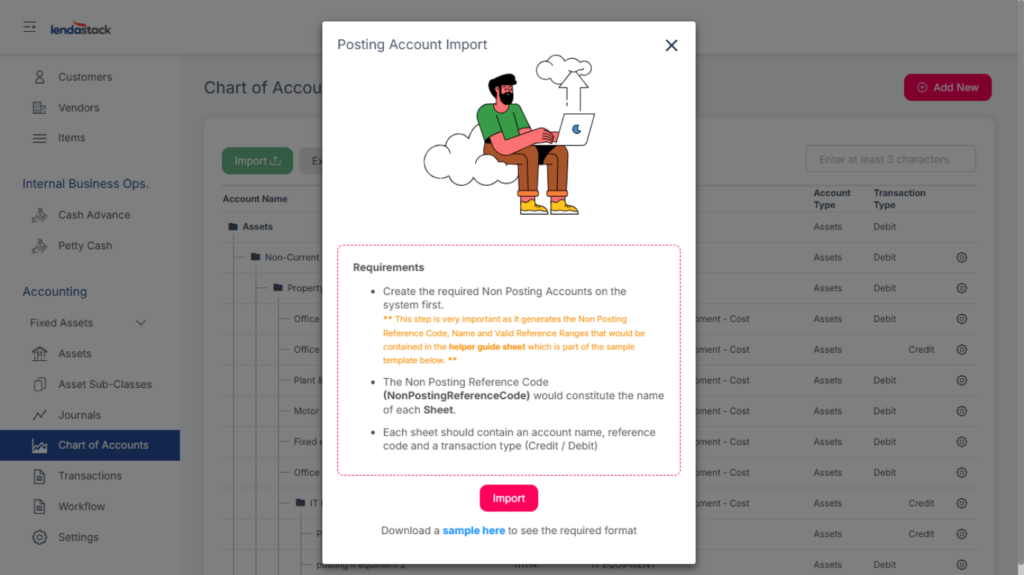
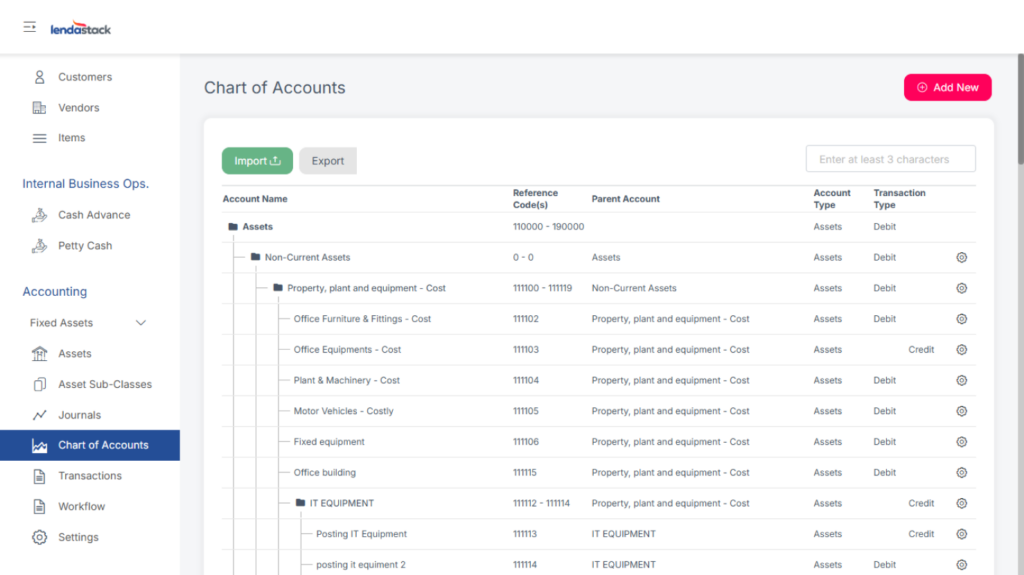
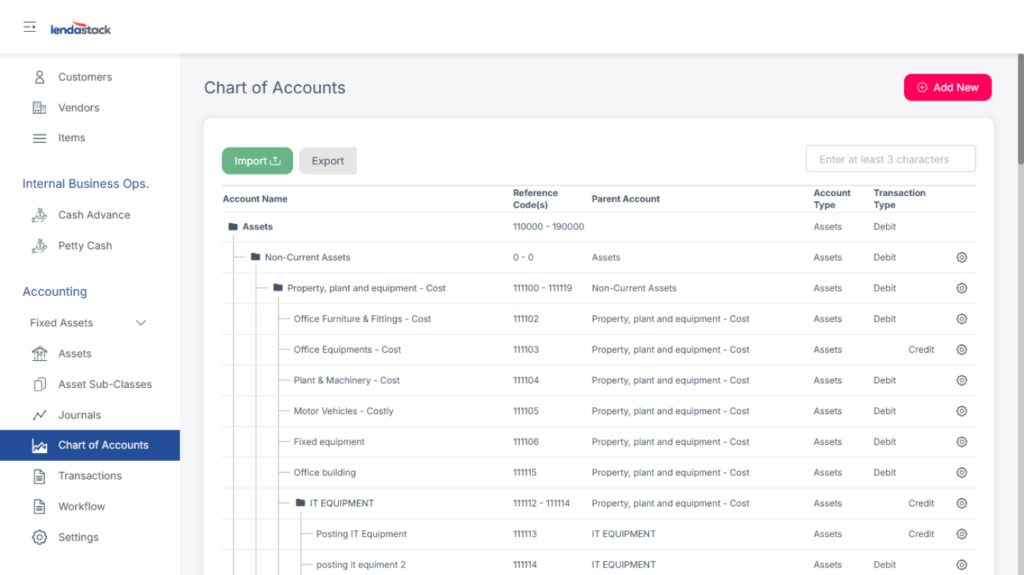
The chart of accounts is a list of all accounts used to classify transactions. Here, users can import or manually add a chart of accounts.
Importing Data
Follow these steps to import data:
- Click Import and download the sample template.
- Fill in the required information.
- Upload the completed file.
Editing an Account
To modify an existing account, click the settings icon next to it and choose Update. Make your changes and save.
Transactions
This Section displays all transaction entries that have been posted in the Finance module and all other integrated modules.
To view transaction details:
- Click on any transaction to see its full posting details.
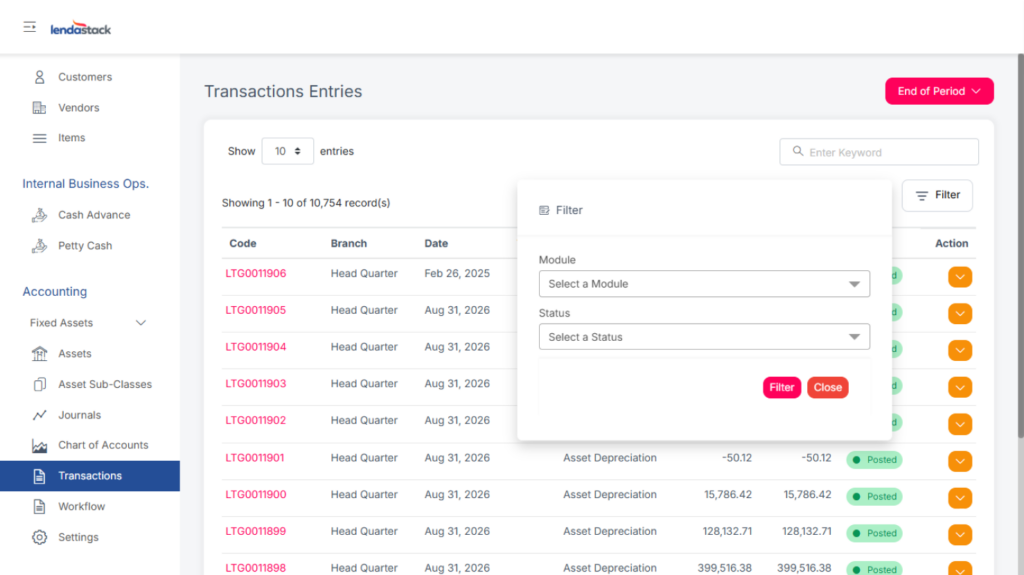
To filter transactions:
- Use the Filter button to view transactions by:
- Module (e.g., Finance, Loans, CRM)
- Status (e.g., Posted, Pending, Approved)
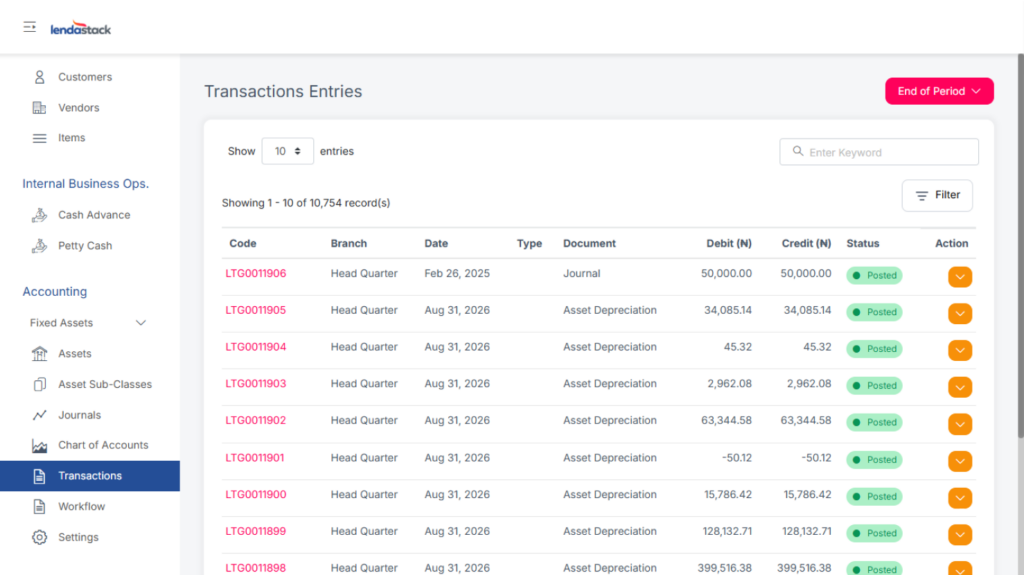
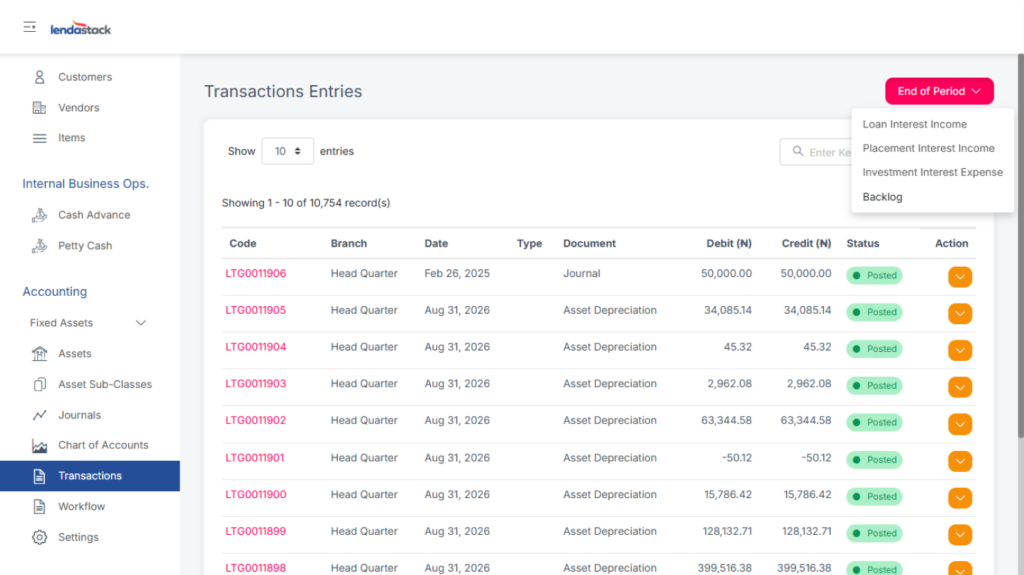
Users can also click on the End of Period dropdown list to view the loan interest income, placement interest income, and investment interest expense transactions.